

The first step, the appearance of the appearance
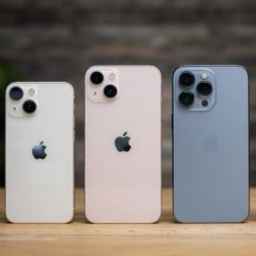
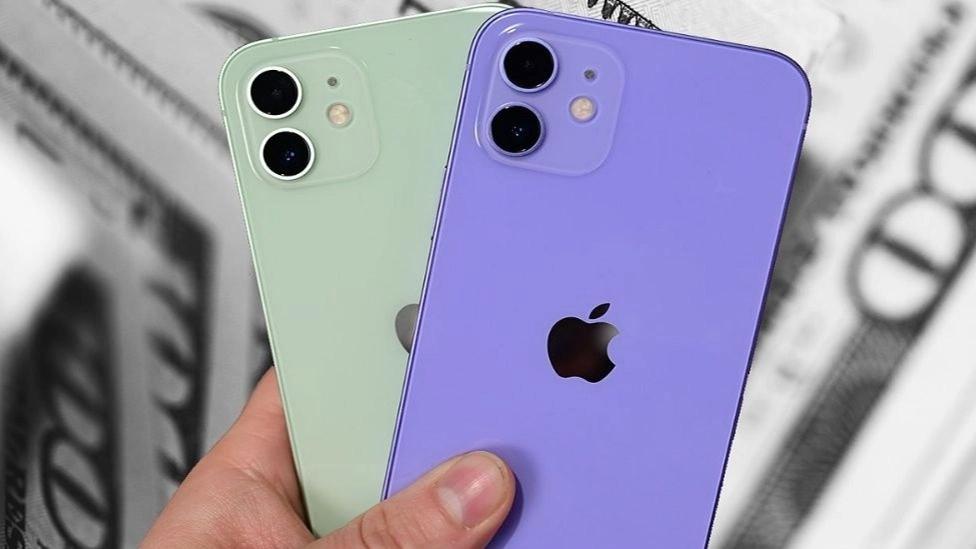
The first thing you should keep in mind is not to go for a cheap used iPhone with a broken body and full of scratches. Always try to buy an iPhone that still has its original shiny and sleek appearance, as it shows that the previous owner has taken good care of it.
Surface scratches around the charging port are normal as they may occur when the charger is connected. Do not connect the connector carefully. However, scratches around the body may have been caused by using it without a protective case or hitting sharp objects.
Note that in models with stainless steel body (models X, XS, XS Max, 11 Pro, 11 Pro Max, 12 Pro, 12 Pro Max, 13 Pro and 13 Pro Max) silver color without any color coating. As a result, this color is more prone to stains or scratches, and despite the correct maintenance of the previous owner, many stains may have been created on the phone frame only due to the dust between the frame and the phone.
Control the serial number and IMEI
One of the ways to ensure that the device is correct and that the phone is not stolen is to check the serial number and IMEI of the phone from inside the operating system and compare it with the body of the phone and on the box. To find the IMEI code, you can dial *#06# or find it from Settings>General>About. This number must be the same as the code engraved on the body and box of the phone.
Make sure the Activation Lock someone else is not active on the phone
For this, go to Settings>icloud and check that the Find My Phone option is not turned on. If this option is on, the phone is locked with the previous user's password and you will not be able to activate it with your information. Of course, you can also enter the IMEI number or serial number on this site to find out the status of the phone. Either it is stolen or the previous user forgot to delete his information from it.
Make sure the phone is not wet
It doesn't matter if the used phone still has a warranty or not, because damage caused by water and moisture is not covered by the warranty, even for waterproof phones. Therefore, before buying, make sure that the phone is not damaged by getting wet.
All iPhone models have a moisture indicator that can be seen from inside the SIM card slot. If this indicator, known by the abbreviation LCI, is red, it means it is wet. Normally, this indicator is white or silver. So be sure to pay attention to this.
Try the camera's camera
Smartphone cameras are one of their most important features, so be sure to record some photos and videos with the phone's camera to be sure of its performance and quality. Check the status of all cameras by zooming. The main camera of all iPhones has vibration stabilization. If the image shakes during 1x zoom in video recording mode, it means that the stabilizer is broken. Then take a photo of a white screen (for example, a sheet of paper) with all the cameras. Zoom in on the photos and check all the spots for dark spots in the image. These stains are caused by improper storage of the iPhone on the camera lenses.
Check the battery health status
There are two different criteria to check the health status of the battery. The first criterion is the percentage of battery health, which can be seen from the following path: Settings=>Battery=>Battery Health A health percentage below 80% means that the iPhone needs to replace the battery to function without problems. As a result, the higher the percentage of battery health is above 80, the more worth buying.
The second criterion is the statement inserted under the percentage of battery health. In normal mode, the term Peak Performance Capability is seen, which means flawless performance of the battery. If another phrase is written in this section, the phone's battery may have lost the ability to provide the necessary current and the phone's performance may have been disturbed. For example, the overall speed of running software, the maximum brightness of the screen, the maximum volume of the speakers, and the amount of antenna coverage may have been reduced to prevent the battery from damaging the phone's circuits.
Try WiFi, Bluetooth and GPS
One of the important tests is to make sure that the iPhone you are looking for connects well to the Internet, can send information via Bluetooth, and its GPS is able to locate well. All these features should work properly if the phone has been well taken care of.
Check the headphone jack and the charging port
Simply make sure the headphone jack is working and the Lightning port is capable of charging the phone and transferring data. Make sure that as soon as the phone is connected to the charger, the charging operation starts without delay and there is no connection. The lightning cable must be firmly locked in the charging port so that the phone can be lifted from the cable.
Make sure the buttons' health
Of course, if you have done the previous steps that we have mentioned, you have probably used the buttons, but once again carefully try all the home, power, volume, etc. buttons. Make sure the buttons operate smoothly and without lag. Sometimes the delay in turning off and turning on the screen may be due to the phone not being updated. If there is only this item, update or reset the phone once.
Make sure the quality of contact and speaker
Play music from the speaker of the phone and make sure that it produces high-quality and expressive sound. Also, call someone on the phone and talk to them using the phone and speaker to make sure the microphone and speaker are of good quality. The noise or buzzing sound of the speakers may be due to the accumulation of dust in their pores. Clean them carefully or use the cleaning service of a specialized collection.
Touch ID, Face ID and 3D Touch
Fingerprint detection sensor is very fast and accurate, especially in recent iPhone models. For this reason, we suggest you define your fingerprint on the phone and make sure the health of the sensor by locking and unlocking it using your finger. In newer models that have Face ID, check this item and make sure it is healthy. To check the health of the Face ID sensor, go to the following path: Settings => Face ID & Passcode Then define a new face for Face ID. If this sensor is faulty, the green band around the image will not be filled.